Photo Editing Software for Windows 11
 FotoWorks XL 2 for Windows 11 FotoWorks XL 2 for Windows 11 |
FotoWorks XL 2 is a photo editor built for people who want clear photo corrections and creative image work on a Windows PC without turning simple editing into a technical task.
Beginners want a direct way to crop, straighten, sharpen, and fix color. Photographers and amateur photographers want room for retouching, object removal, layers, masks, and repeated editing across many files. This photo editing software for Windows 11 brings those needs together in one desktop program.

Many users search for a photo editor for Windows 11 because they want more control than a basic viewer but do not want a confusing workflow. FotoWorks XL 2 covers everyday jobs such as brightness correction, contrast tuning, red-eye removal, cropping, and background removal, while also opening the door to collages, montages, text overlays, effect brushes, and stylized looks. Anyone looking for a photo editor, photo editing software, or image editing software can use it for practical fixes and more creative projects.
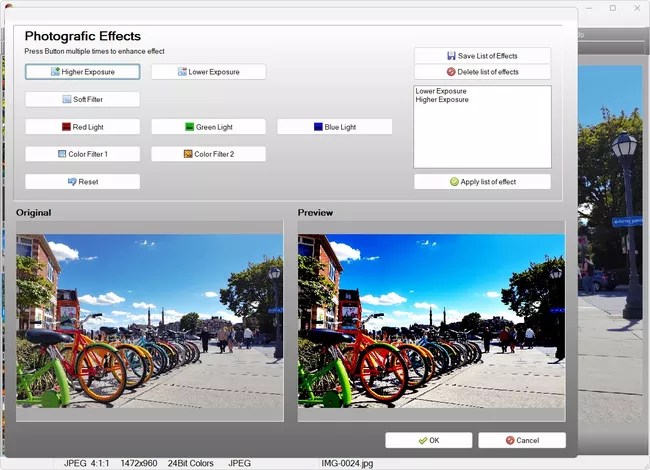
Why FotoWorks XL 2 Fits Everyday Photo Editing
Photos usually need small corrections before they feel finished. A horizon is slightly tilted, indoor light makes skin tones look unnatural, the subject is too dark, or an empty edge weakens the composition. FotoWorks XL 2 helps solve those common issues with tools that people actually use again and again. Crop a picture, adjust brightness, increase contrast, correct color, and sharpen details so the image looks cleaner and more balanced. That makes this photo editor useful from the first editing session onward.
For beginners, a photo editor for Windows 11 should not hide basic tasks behind a complex process. FotoWorks XL 2 keeps the editing path focused on visible results. Users can open a file, fix the framing, remove red eyes, correct light, and continue with retouching or effects when needed. This matters for family photos, holiday pictures, portraits, pet photos, and hobby photography, where the goal is usually a better final image rather than a long editing session.
Clear Tools for Beginners
A first editing program should help users understand what each adjustment actually changes. Brightness helps recover dark pictures. Contrast helps separate light and dark areas more clearly. Saturation changes how vivid colors look. Sharpness and sharpen controls help when a picture appears slightly soft. Histogram support gives users a visual way to judge tone distribution when they want more control over exposure and balance. These are the kinds of functions that turn image editing software into a practical part of daily photo work.
Beginners also benefit from tools that solve a specific problem directly. Remove red-eye effect for flash portraits, straighten crooked images automatically, fix perspective in building shots, and correct converging lines in architecture photos. That direct problem-to-tool connection is important because a good photo editor should help users reach the result they want without technical detours.
Photo Editor for Windows 11 for Fast Fixes
Daily image corrections are usually simple but important. Trim a distracting edge, balance a dim photo, tone down a color cast, or remove a small background distraction before sharing or printing. A photo editor for Windows 11 should make those quick fixes feel natural. FotoWorks XL 2 supports that kind of workflow, which is why it works well for family albums, vacation photos, event images, and casual portrait edits.
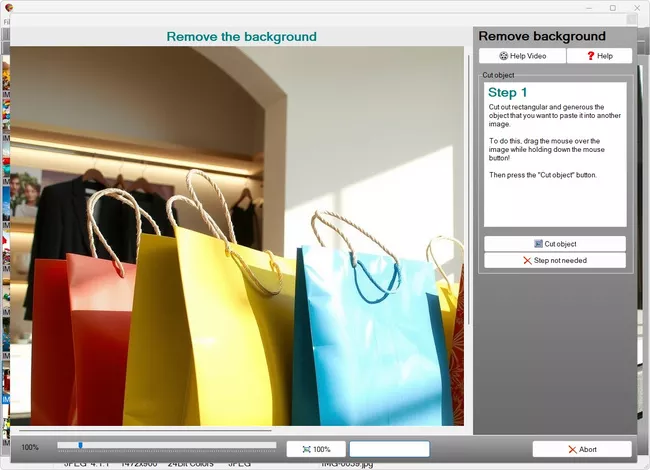
Photo Editing Software for Windows 11 for Better-Looking Pictures
Good editing starts with the issues that make a photo look unfinished. Lighting may be too weak, colors may appear dull, vertical lines may lean, or the framing may pull attention away from the subject. FotoWorks XL 2 addresses those problems with brightness, contrast, color adjustment, color correction, sharpening, perspective correction, and crop tools that help shape a cleaner image. That is a key reason why people search for photo editing software for Windows 11 instead of relying on a basic viewer.
A clear composition also matters. Crop can remove empty space, improve balance, or prepare a file for printing and social sharing. Automatically straighten helps level horizons quickly, while perspective correction and converging lines correction help buildings and interiors look less distorted. These are not decorative extras. They solve visible problems that can make a photo look rushed or amateurish even when the original subject is strong.
Fix Light, Color, Crooked Lines, and Framing
Photos taken indoors, at sunset, or under mixed lighting can look too yellow, too blue, too flat, or too dark. Brightness, contrast, color adjustment, and color correction give users direct control over those issues. Sharpening can bring back crisp detail when an image looks slightly soft. Blur and focused effects can also be used deliberately when the goal is to guide attention toward the main subject rather than treat every area equally.
These corrections matter across many types of images. Portraits need natural skin tones. Travel shots need straight horizons and believable colors. Product or object images need a clean background and a clear main subject. A capable photo editor helps users make those changes without breaking the flow of their work.
Image Editing Software for Portraits, Travel Shots, and Family Photos
Portraits, travel pictures, and family moments all benefit from different editing tools. Retouching, airbrush effects, and red-eye correction help with portraits. Crop, brightness, and perspective correction help in travel photography. Clone stamp work, remove object from image, and remove person from image can clean up busy backgrounds in family or event photos. This makes image editing software more than a place for filters. It becomes a direct way to solve real visual problems in pictures people care about.
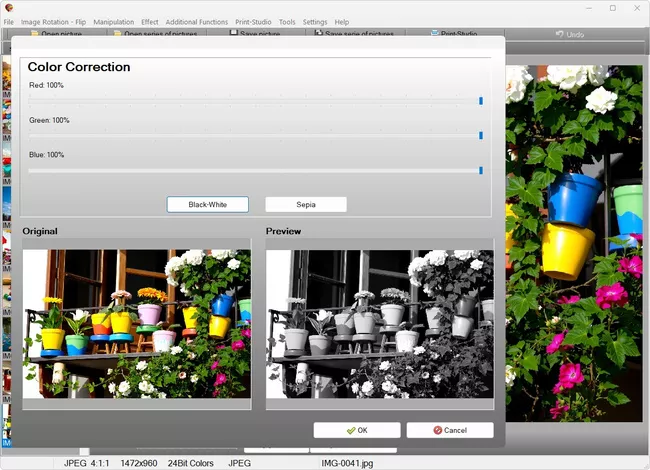
Create More Than Basic Corrections With FotoWorks XL 2
Not every image project is about fixing mistakes. Sometimes the goal is to create something more personal or visually dramatic. FotoWorks XL 2 includes tools for collages, photo montages, text overlays, cliparts, light reflection effects, poster effects, radial effects, oil painting effects, black-and-white effects, sepia, solarization, vignettes, and motion effects. Those tools help users move from a corrected photo to a designed image with a stronger mood or concept.
This is valuable for greeting cards, invitations, memory boards, presentation graphics, hobby projects, and social images. Users can combine photos, apply stylized looks, add captions, and shape a stronger visual message. A photo editor should not stop at correction when many users want both clean results and room for creative image design.
Collages, Montages, Effects, and Text
Collages help combine several moments into one image instead of leaving them scattered across separate files. Create photo collages for travel summaries, birthdays, family events, or hobby projects. Photo montages go further by merging separate image elements into a new composition. Insert object into an image or insert person into an image when a project calls for a more custom result. Add text to label, personalize, or present an image more clearly.
Own cliparts add another level of customization, especially for cards, posters, and themed graphics. Effects such as black-and-white, sepia, oil painting, poster looks, and light reflections help users define the style they want instead of settling for a plain original shot.
Photo Editing Software for Windows 11 With Layers and Masks
Layers and masks make detailed edits more flexible because changes can stay limited to the right area. Users can combine elements, isolate adjustments, and keep more control over the final composition. Copy and paste with mask helps move selected image parts while keeping edges cleaner. Mask effects help shape selective changes, while the clone stamp helps repair or duplicate textures when needed.
For anyone looking for photo editing software for Windows 11 that goes beyond basic sliders, layers and masks matter because they support cleaner editing decisions. Users can work on one area at a time, which is especially useful for retouching, background changes, montage work, and selective effects.
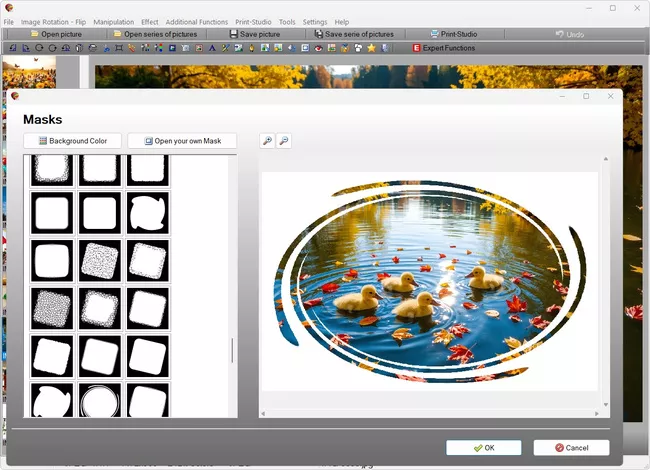
Photo Editor for Windows 11 for Removing Distractions
A strong photo can lose impact because of one unwanted detail. A person walks through the background, a cable crosses the frame, a sign interrupts the scene, or the background is simply too busy. FotoWorks XL 2 includes tools to remove object from image, remove person from image, use clone stamp corrections, and remove background where a cleaner cutout is needed. That makes a photo editor for Windows 11 much more useful in everyday situations.
These functions matter for portraits, travel pictures, family images, product photos, and creative montages. A removed distraction can change the full impression of a picture. Instead of accepting a near-miss photo, users can clean the image and keep the moment.
Remove Backgrounds, Objects, and Red Eyes
Background removal helps isolate a subject for profile photos, product-style images, collages, and design projects. Remove object from image helps eliminate smaller distractions, while remove person from image is useful when a passerby or unrelated subject weakens the scene. Red-eye correction helps repair flash portraits quickly so the result looks more natural and ready to share.
These are practical changes, not decorative ones. They help users rescue photos that would otherwise feel unusable or unfinished. That is one reason many people look for a stronger photo editor instead of basic built-in editing tools.
Photo Editor for Windows 11 for Cleaner Compositions
Composition improves when the subject becomes easier to read. Crop removes dead space. Background cleanup reduces visual noise. Focused effects and blur can direct attention where it belongs. Contrast and brightness help the subject stand apart more clearly. A photo editor for Windows 11 should give users a direct way to make the whole image feel more intentional, and FotoWorks XL 2 supports that approach well.
Save Time During Repeated Editing Tasks
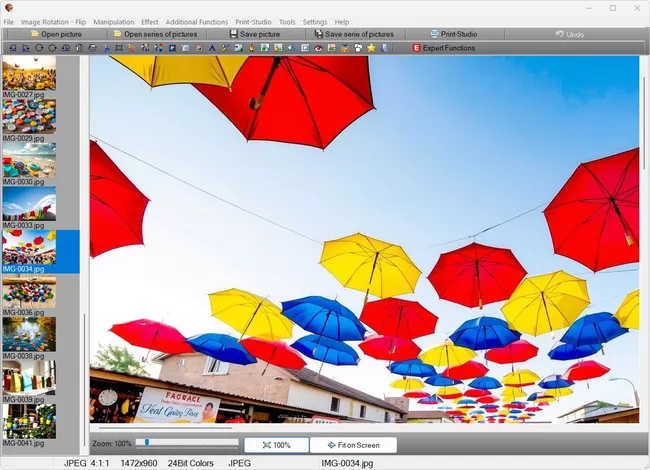
Editing one photo is different from editing a whole event, vacation, or shooting session. Many images from the same situation need similar treatment. They may all need straightening, a brightness correction, better contrast, light color cleanup, and the same save settings. FotoWorks XL 2 supports editing and saving entire image series as well as batch processing, which helps users keep their work consistent across multiple files.
This matters for photographers and amateur photographers who want an organized result without repeating identical work file by file. It also helps beginners who simply want a practical way to process many family or travel photos after an event.
Edit Series and Repeat Common Steps
When a full image set shares the same lighting and framing issues, repeating the same edits manually slows everything down. Detailed retouching becomes more precise with professional photo editing software for Windows 11. Applying similar corrections across a series can keep the final set more consistent. That is useful for event photos, holiday pictures, product shots, school images, club pictures, and hobby photography sessions where a uniform look matters.
Image Editing Software for Organized Photo Work on Windows 11
Image editing software becomes more useful when it supports a realistic workflow instead of only one-off editing. Process many files, keep the look aligned, and save results in a structured way. That gives users more control over larger projects and makes the software practical beyond occasional corrections. For anyone searching for image editing software or photo editing software for Windows 11, this kind of repeated-work support can make a clear difference in day-to-day use.
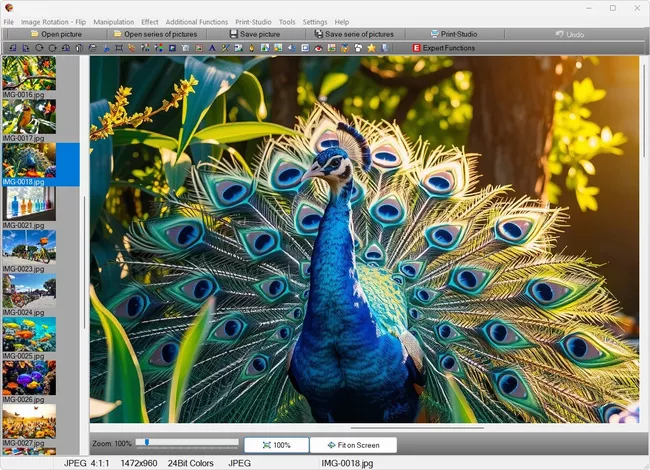
Photo Editing Software That Stays Practical for Different Skill Levels
Some users only want to correct photos from everyday life. Others want deeper control over retouching, masks, montages, and visual effects. FotoWorks XL 2 covers both paths in the same program. Beginners can focus on crop, straighten, red-eye correction, brightness, contrast, and color work. More experienced users can move into layers, clone stamp repairs, mask-based edits, collage layouts, montage projects, and stylized image design.
That range matters because photo editing needs usually grow over time. A user may begin with simple family photo fixes and later want to create posters, collages, or cleaner portrait edits. A practical photo editor should still feel useful when those needs expand.
Useful for Beginners, Hobby Users, and Photographers
Beginners need understandable controls and direct results. Hobby users want freedom to experiment with effects, text, cliparts, and collages. Photographers and amateur photographers want correction tools that help them recover and refine real images. FotoWorks XL 2 serves those groups because it combines practical image correction with creative design options in one Windows-based workflow.
Photo Editor and Photo Editing Software for Windows 11 Without Confusing Menus
People looking for a photo editor, photo editing software, or photo editing software for Windows 11 usually want one thing first: control over their images without feeling lost. FotoWorks XL 2 focuses on visible image results such as better framing, better tone, cleaner backgrounds, improved portraits, and more expressive designs. That makes it a strong fit for users who want a desktop photo editor for Windows 11 that stays useful across ordinary fixes and creative image work.
FAQ About FotoWorks XL 2 and Photo Editing Software for Windows 11
Is FotoWorks XL 2 suitable for beginners?
Beginners can start with direct tasks such as crop, brightness, contrast, straighten, red-eye correction, and color adjustment. The software also includes more advanced functions for users who want deeper control later.
Does FotoWorks XL 2 work as photo editing software for Windows 11?
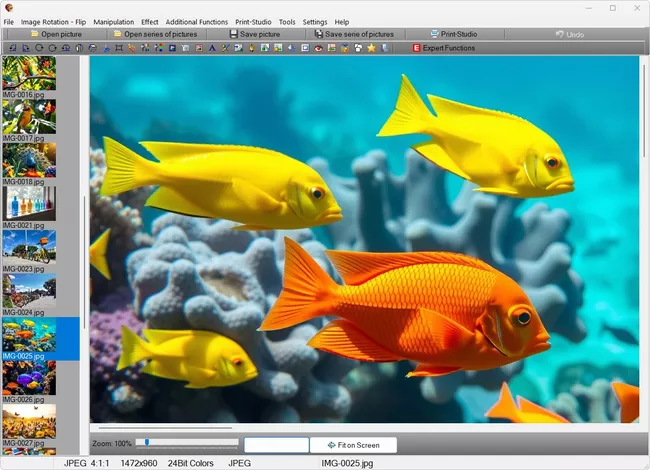
FotoWorks XL 2 is positioned as photo editing software for Windows 11 and is meant for users who want desktop-based photo correction and creative image editing on a Windows PC.
Can I remove objects or people from a photo?
The available functions include remove object from image, remove person from image, clone stamp corrections, and background removal for cleaner compositions.
Can I create collages and photo montages?
FotoWorks XL 2 includes collage and montage functions so users can combine several images, place elements together, and build more customized visual compositions.
Does the software support editing many photos from one session?
Edit and save entire image series and batch processing help when many photos need similar corrections and a consistent final look.
Can I add text and watermarks to images?
Users can write text on images and add watermarks for labeling, personalization, branding, or image protection.
Is FotoWorks XL 2 only for casual users?
It is suitable for beginners, photographers, and amateur photographers who want both practical correction tools and creative editing options such as layers, masks, effects, and montages.
Can I fix perspective and straighten crooked photos?
The software includes automatically straighten, perspective correction, and converging lines correction to help correct tilted or distorted images.
|
|
